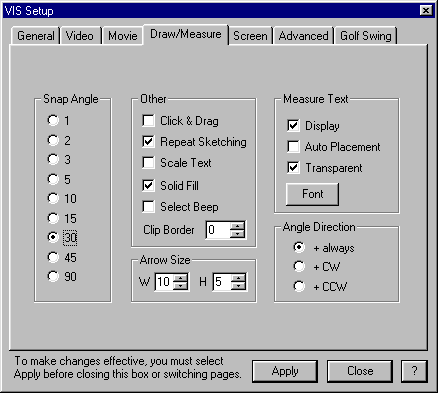
The Snap Angle section of the VIS Setup/Draw dialog box sets the angle that drawn lines will snap to. A snap angle is when a line will automatically be drawn at an increment equal to the angle set in this Snap Angle box.
Snap angle is enabled by holding down the Shift key while drawing the line. Lines and infinite lines can be snapped to an angle.
The Other section of the VIS Setup/Draw/Measure dialog box sets the way drawing is accomplished.
Click and Drag, when checked, causes drawing entities to be made by clicking and holding the left mouse button to establish point 1 and then dragging the mouse to the second point. When the left mouse button is released, the drawing entity is completed. When unchecked, drawing is accomplished with a click to establish point 1 and then a second click to establish point 2.
Repeat Sketching, when checked, causes drawing to continue to occur, even after the drawing entity such as a line, circle, or text have been completed. When unchecked, the drawing object must be selected each time it is used. For instance, unchecked, the line icon must be selected each time it is used.
Scale Text, when checked, causes text to be scaled as the movie is zoomed in and out. The scale of the text will follow the movie size.
Solid Fill, when checked, causes boxes, circles, polygons, and angles to be filled with cross-hatching. The crosshatching can be removed after the entity is drawn by clicking the right mouse button (undo.) When unchecked, these drawing and measuring objects only show the outside lines.
Select Beep, when checked, enables an audible beep for every mouse click.
Display, when checked… When unchecked…
Auto Placement when checked….
Transparent, when checked, will show the numerical value against the movie background. When unchecked, the value will have a white background surrounding the number for clarity.
The Font button will set the default font and font size for measured angle values.
The Angle Direction section of the VIS Setup/Draw/Measure dialog box determine the direction of a positive angle when using angle measure functions.
+ always, when checked, causes any angle to appear as a positive angle.
+ CW, when checked, causes an angle to be positive when clockwise and negative when counterclockwise.
+ CCW, when checked, causes and angle to be positive when counter-clockwise and negative when clockwise.