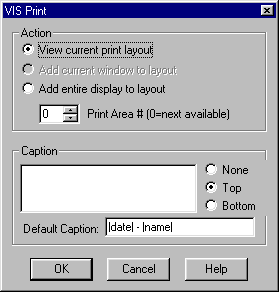
The Print Menu can be accessed by using either:
•
Selecting File/Print on the main menu,
•
pressing Ctrl-P on the keyboard, or
•
selecting the Print icon on the main toolbar.
A print layout of a single page is assembled from titles and images and then sent to the printer for printing.
Selecting Print brings up the VIS Print dialog box. The Action part of box gives you choices about viewing and adding your image to the print layout. You choose your print layout action and then click on OK. All of the choices take you to the print layout page.
View current print layout
Allows you to view the current print layout on the Print Layout dialog box. You will see any titles and other images that have already been placed on the page.
Add current window to layout
Adds the active window to the print layout and takes you to the Print layout dialog box.
Add entire display to layout
Adds not only the active window, but the entire VIS display (except for the VIS controls and toolbars) to the page to be printed and takes you to the Print Layout dialog box.
Print Area #(0=next available)
Loads the image in the active window in the print layout at the number selected. If 0 is the number in the box, VIS loads the new image in the next available print area.
You can add a caption or title to the current image by typing it in the caption box and designating a location at either the top or bottom of the page. This caption will move and scale with the print area.
To set a separate title or caption for the entire page, use the Print Area Caption option in the Print Layout dialog box (See Print Area Caption.)
A default caption can be set in the Default captions part of the dialog box. For example, setting
|date| - |name|
will put the current date as in the computer and the name of the VIS movie as a caption for that picture.
See Appendix A for a listing of caption formats that automatically insert current information about the movie, system, and date/time.
Will, I put an Appendix A placeholder, but I need for you to put in the information…