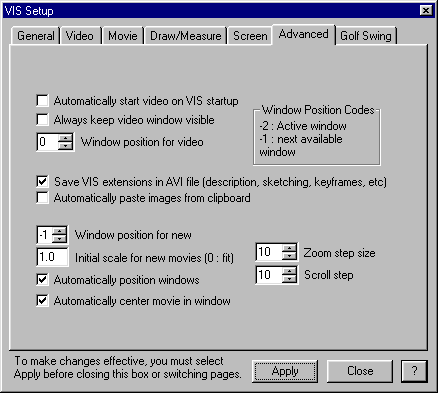
Advanced Setup settings do not normally require adjustment. These settings are provided for unusual applications and troubleshooting.
Advanced Setup Dialog Box
Automatically start video on VIS Startup
Automatically start video on VIS Startup will automatically start the video window when VIS starts. This feature is primarily used …. Is it not recommended for standard applications because of potential lags in initializing video capture.
Always keep video window visible
It is not recommended that the video window always be visible except in applications where an instructor is not available and the user is simply checking swing data. The video window takes system resources that can affect performance. It is recommended that the video window be shut down with the Video on/off toggle except when capturing video.
Window position for video
AutoPaste images from clipboard
If, for some reason you wish to use an external video capture program to capture images, you can still semi-automatically get these images into VIS if the external program supports copying an image to the Windows™ clipboard. Turn on Autopaste images from clipboard and then every time you capture an image in the external application, you can send if to the clipboard and VIS will automatically load the image and empty the clipboard. Be sure to turn Autopaste images from clipboard off when finished.
Initial scale for new movies
Auto position new windows
The Zoom Step Size controls the zoom increment per mouse click while in zoom mode.
The Scroll Step Size controls the number of pixels moved per mouse click when scrolling movies.