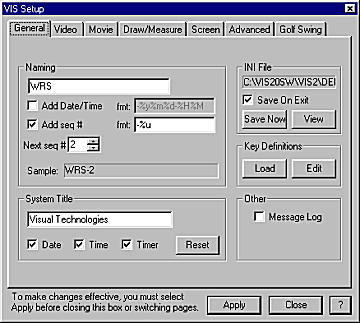
The General Setup screen sets default system information that applies to all movies and files.
The text in the Naming box will be the default title applied all new movie clips that are captured.
Clicking on Add Date/Time will append the current date and time to the movie title.
The fmt (format) entry allows you to choose the format/style of the date and time text. See Appendix A for a listing of formats and their associated styles for date and time.
The Next seq# entry allows you to choose the beginning frame number for captured movie clips.
The grayed Sample area shows you a sample of what your movie title will look like.
System Title is the usually the title of your enterprise, school, or common identifier. This title automatically appears…
Will, finish this out for me…
The settings in the INI File section of the General Setup dialog box allow you to view the Windows™ vis.ini file that controls how VIS starts. The View button lets you view the file using Notepad. A listing of the original vis.ini file is provided in Appendix B.
Will, can you elaborate on when the Notepad file is saved permanently, what the Save ON Exit checkbox mean and the Save Now box… or do we want to trash all of this write-up and say that this is only used when working with the technical support staff at CIS…
The keyboard functions definitions are mapped to keys using the setup in the viskeys.ini file. The Load and Edit buttons allow you to change how your keyboard is mapped to functions. A listing of the original viskeys.ini file is provided in Appendix C.
The Message Log checkbox of the General Setup dialog box is used in conjunction with VIS technical staff for debugging purposes only.