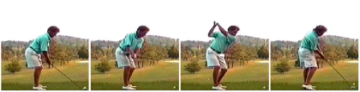
The previous sections discussed editing your movie, adding key frames, and drawing reference lines and marks. You can use the movie clip for instruction just as it is, but VIS provides an important feature that allows you to stack or tile the individual pictures of the movie so that you can easily look over them to study motion. The four picture sequence shown in the figure below was printed from a movie layout created from key frames set in a golf swing movie.
Selecting Movie Layout pops up the Movie Layout dialog box where you set-up the number and arrangement of the individual images. If you have set key frames, you can click on the Only Key Frames box to layout an image using only the key frames.
When you select Create in the Movie Layout dialog box, VIS creates an image from the movie frames and puts it in a new window. You can then print this image.