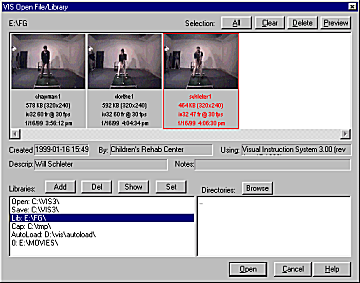
The Open File Menu can be accessed by using either:
•
Selecting File/Open File on the main menu,
•
pressing Ctrl-O on the keyboard, or
•
selecting the Open File icon on the main toolbar.
Selecting File/Open File pops up the VIS File/Library Open dialog box. This box allows you to open existing movies and images and to set the home directories for movie capture and storage.
VIS also supports drag and drop for loading movies and images. To use this feature, display Windows Explorer and VIS in side by side windows, locate your movie or image files, and drag them to the VIS window.
The Preview Window shows you all of the movies saved in that directory. The first frame of the movie is shown to help in selecting a movie to open.
The VIS File/Library Open dialog box shows you the previews of saved movies. To open a movie, just highlight the one you want and double click it with the left mouse button or highlight the movie you want and press the Open button in the lower right hand corner.
Preview Window Controls
All
All selects all the movies in the Preview window.
Clears the selection of movies. For instance, if you accidentally selected all of the movies by selecting All, you could unselect them by pressing Clear. This function doesn't clear out or delete the movies - it simply clears selection of movies.
Deletes all movies selected. This deletion actually removes the movie from your computer. To clear out a directory, you would select all of the movies with the All button, and then click Delete.
If you want to check out a movie without opening it, highlight the preview image of the movie and then click on the Preview button. The movie will play without loading.
To find movies in another directory, use the Browse button. Select the directory you want, and previews of the movies in that directory will appear in the preview box.
Detailed information about the selected movie is given. The first line give the date and time that the movie was saved, the file size, compression scheme, number of frames, the rate of frame capture, and the size of the movie image in pixels. The second line provides the source from which the video was captured.