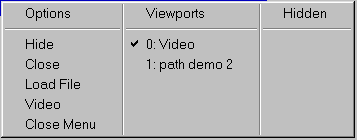
The Contents popup menu displays the current status of and provides control over what is displayed in the current viewport. The current viewport is the area of the screen you clicked the mouse in to make this menu appear, or the viewport containing the active window. The Contents menu can be displayed up by:
•
Selecting Window/Contents from the main menu
•
Clicking in an empty viewport with the left mouse button.
The Contents box shows the status of all of the open windows in VIS. The Contents box can be popped up by either:
•
Selecting Window/Contents from the main menu
•
Clicking in an empty window with the left mouse button.
To dismiss this menu without selecting, either right-click the mouse, press the ESC key, or choose the Close Menu option. The top row of the menu is a header describing each column and is not selectable. Whatever action or file you select from this menu will be applied to the current viewport.
Removes the currently displayed file from the viewport without removing it from memory. Same as selecting the minimize button on the windows caption bar.
Removes the currently displayed file from the viewport and closes the file without prompting. Same as File->Kill File.
Loads a new file from disk and displays it in the current viewport. If a file is already displayed in thecurrent viewport, it is hidden. Same as File->Open File.
Displays the live video window in the current viewport, hiding any existing file. Same as Video->On.
Dismisses the popup menu without taking any action.
This column displays the contents (window name) of each viewport in the current screen layout. The current viewport is indicated by a check mark. Windows displayed in other viewports can be moved to the current viewport by selecting them from this column.
This column display an alphabetical list of all files that are hidden, i.e. loaded into memory but not currently displayed. Selecting a file from this list will display it in the current viewport.